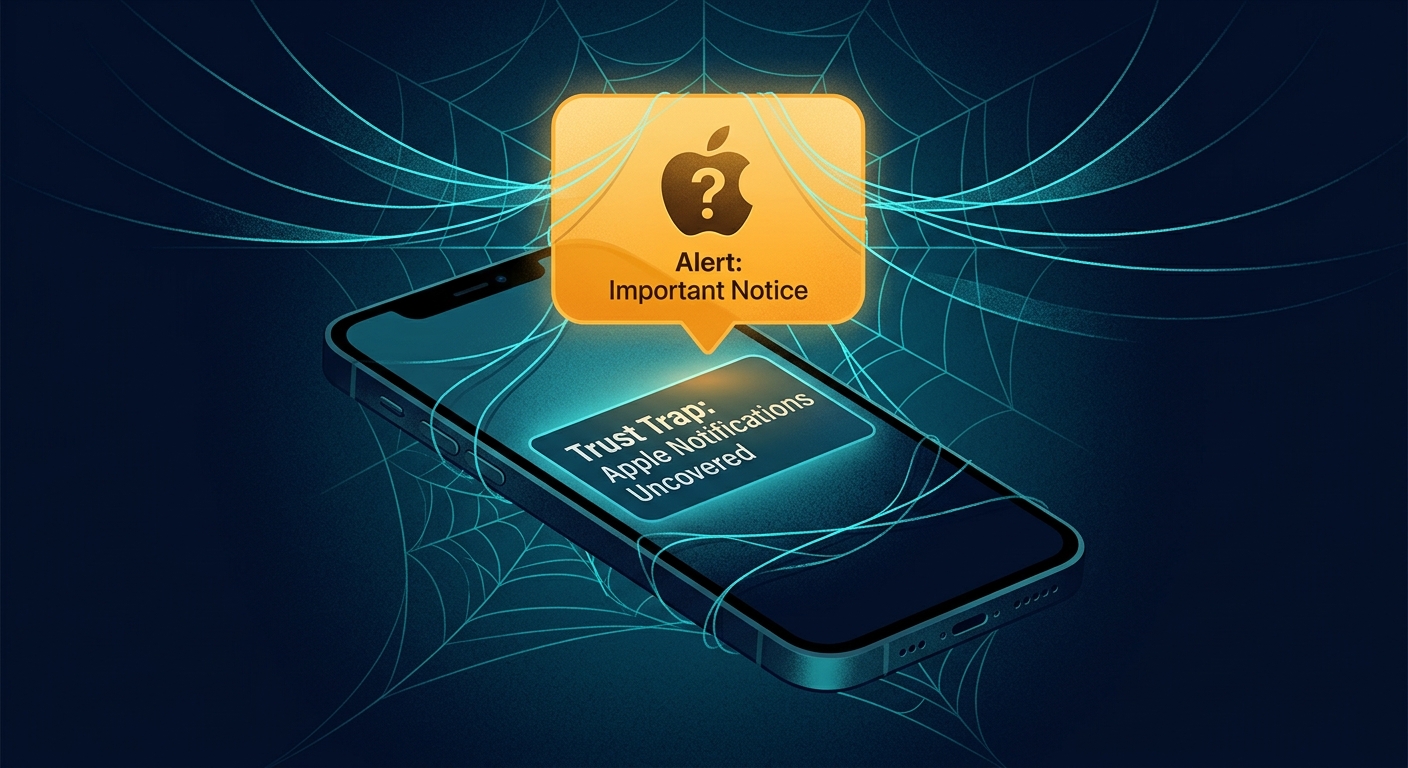
Why the "Trust Trap" Works
For over a decade, Apple users have been conditioned to trust system notifications. When a box pops up saying your account has been accessed from a new city, your instinct isn't to question the notification—it's to secure the account. Scammers have perfected the art of "notification spam," sending dozens of prompts to your device until you click just to make them stop.
This isn't just about bad grammar anymore. Scammers are now using sophisticated tools to spoof sender IDs, making a phishing text appear in the same thread as your real Apple verification codes. This "contextual trust" is what makes the 2026 wave of Apple scams so dangerous.
The Golden Rule of Apple Security
Apple will almost never send you a text or email with a link to "fix" an account issue. If there is a real problem, you will see a red badge or a persistent alert inside the **Settings** app on your iPhone or Mac.
The Mechanics: How the Scam Unfolds
Understanding the steps a scammer takes can help you recognize when you are being "processed" for data theft. Most Apple phishing campaigns follow a specific, high-pressure pattern designed to limit your time for critical thinking.
1. The Initial "System" Alert
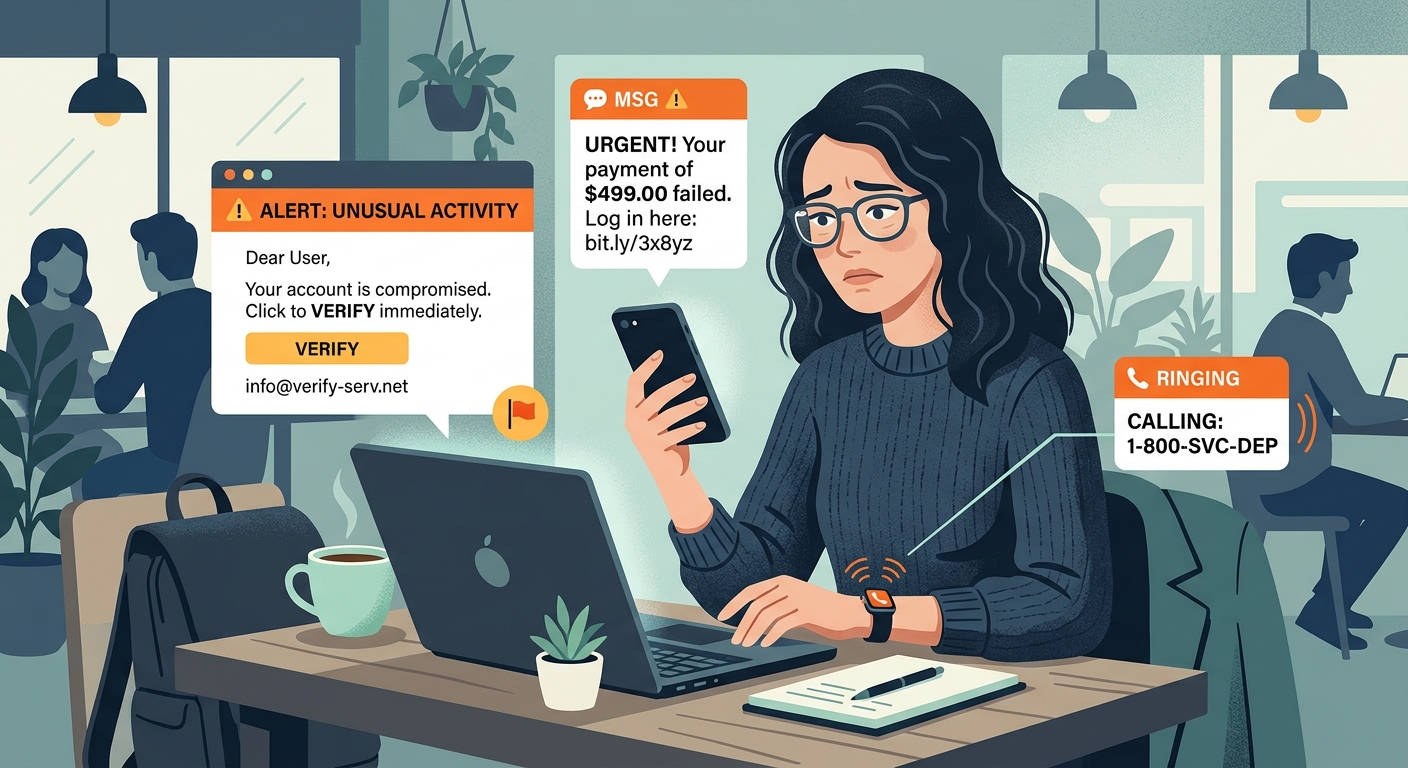
It starts with a notification. It might be a text message (iMessage or SMS) or an email that uses official-looking logos and branding. The message often claims that a "Sign-in was attempted from [New Location]" or that "Your Apple ID has been locked for security reasons."
2. The Sense of Urgency
The message will always include a time limit—"Review this activity within 24 hours to prevent account deletion." This pressure is intentional. It forces you to act quickly rather than inspecting the URL or the sender's actual address.
3. The Mirror Site
If you click the link, you are taken to a "Mirror Site." These are pixel-perfect copies of the Apple ID login page. Scammers use scripts to copy the live code of the real Apple site, so everything from the fonts to the animations looks official. However, the URL in the address bar will be slightly off—something like `apple-id-security.com` or `apple.support-check.net`.
4. The 2FA Harvest
This is the most critical part. Even if you have Two-Factor Authentication (2FA), you aren't safe. The fake site will ask for your password, and then immediately prompt you for your 2FA code. When you type that code into the fake site, the scammer's bot instantly uses it on the *real* Apple site to log in. By the time you realize it's a scam, they've already changed your password and recovery information.
Three Dead Giveaways of a Fake Alert
While the visual design is getting better, scammers still have "tells" that they cannot hide. If you see any of these signs, stop immediately and close the window.
- The "Check Status" Button: Real Apple alerts usually don't have buttons that lead directly to a login page. They give you information and tell you to go to your device settings.
- Non-Apple URL: No matter how real the page looks, check the domain. If it isn't `apple.com` or `icloud.com`, it's a scam. Beware of subdomains like `apple.com.security-alerts.net`—the real site is always what comes before the last `.com` or `.net`.
- Strange Sender Addresses: On an iPhone, tap the sender's name at the top of the message. If the email address behind the "Apple Support" name is a Gmail address or a string of random characters, it's fake.
How to Protect Your Apple ID
| Protection Layer | What it Stops | Action Required |
|---|---|---|
| System-Only Checks | Mirror Site Phishing | Only verify account issues via Settings > [Your Name]. |
| Recovery Contacts | Account Lockouts | Add a trusted friend or family member as a recovery contact. |
| Security Keys | 2FA Interception | Use physical YubiKeys for the highest level of protection. |
| Privacy Browsing | Targeted Tracking | Use Free VPN US to mask your digital footprint. |
Beyond the Notification
Securing your Apple ID is about more than just ignoring bad links. It's about reducing the amount of data that scammers can find about you in the first place. Most phishing attacks start with a leak—your phone number or email being found on a "sucker list" compiled by data brokers.
Use a Privacy-First Connection
Scammers often target users based on their location or browsing habits. By using **Free VPN US**, you encrypt your data and hide your IP address. This makes it significantly harder for third-party trackers to build a profile on you, which in turn reduces the chances of your email being sold to phishing networks. While a VPN isn't a "magic shield" against you clicking a bad link, it is a vital part of a defense-in-depth strategy that keeps your digital identity private.
Check Your Digital Hygiene
Have you ever entered your phone number on a random "Win a Prize" site? Or used the same email for twenty different accounts? These are the breadcrumbs scammers follow. Periodically review your "Sign in with Apple" settings and revoke access for apps you no longer use. The less "surface area" you have online, the harder you are to hit.
The "Wait Five Minutes" Rule
When you get an urgent security alert, wait five minutes before doing anything. Scammers rely on the adrenaline of a "crisis" to make you bypass your common sense. If you step away, clear your head, and then check your account via official channels, you will spot the scam every time.
If You've Been Scammed: The Immediate Response
- Change Your Password: If you can still log in, change your Apple ID password immediately. Use a unique, complex password that isn't used anywhere else.
- Revoke Trusted Devices: Go to your Apple ID settings and look for any devices you don't recognize. Remove them immediately.
- Check Recovery Info: Ensure your recovery email and phone number haven't been changed. Scammers will often swap these to maintain access after you change your password.
- Contact Your Bank: If you had cards saved in Apple Pay or your Keychain, call your bank to monitor for unauthorized transactions.
Phishing is a game of numbers. Scammers send out millions of alerts hoping that a few hundred people are having a busy day and won't check the URL. By staying informed and using tools like **Free VPN US** to maintain your privacy, you move yourself out of the "easy target" category and into the safe zone.
Frequently Asked Questions
How can I tell if an Apple alert is real or fake?
Real Apple alerts about account changes or security issues almost always appear directly in the Settings app or as a system-level popup. If you receive an email or text that asks you to click a link and sign in, it's likely a phishing scam. Always check your account status directly via Settings on your device.
What should I do if I clicked a link in a fake Apple notification?
If you clicked a link and entered your credentials, immediately change your Apple ID password from a trusted device. Enable or check your Two-Factor Authentication (2FA). Also, check for any unauthorized changes to your recovery email or trusted phone numbers.
Will Apple ever ask for my password in a text message?
No. Apple will never ask for your password, 2FA codes, or personal details via text message or email. Real security alerts will direct you to the official Apple website or your device's Settings menu.
Can a VPN protect me from phishing scams?
A VPN like Free VPN US encrypts your connection and masks your IP, making it harder for scammers to track your browsing habits. While it doesn't stop you from clicking a bad link, it adds a layer of privacy that makes you a harder target for data-mining operations that fuel phishing campaigns.
Deeper Into Security
Identity theft is evolving. Stay ahead of the latest tactics with these specific guides on mobile and account security.
Related Security Guides
Browse Privately, Stay Hidden
Reduce your exposure to data-mining operations and targeted scams. Mask your IP and encrypt your connection with Free VPN US.
- Identity Masking
- Private Connection
- No Tracking